Installation
This section describes the installation process for Cascade and the procedure for license registration. Please download the installer’s ISO image file from the link provided below.
Note
Please verify that your PC meets the necessary Operating Conditions for the software before installation.
Installation Procedure
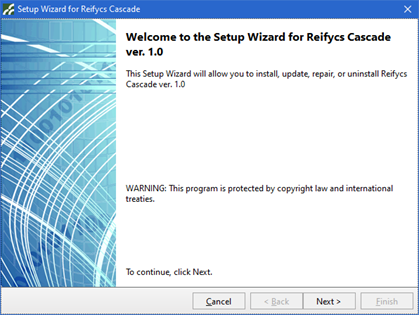
Execute ReifycsSetupWizard. Upon execution, the following screen will appear. (A security warning may be displayed; please proceed with the execution.) After this screen appears, click ‘Next’.
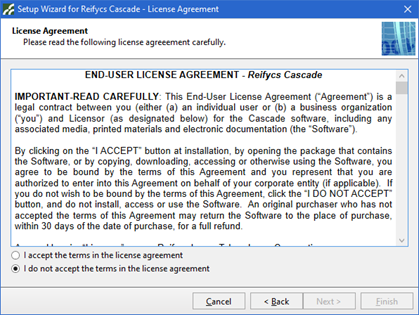
The next screen will be a license agreement screen. Please select “I accept the terms in the license agreement” and click ‘Next’.
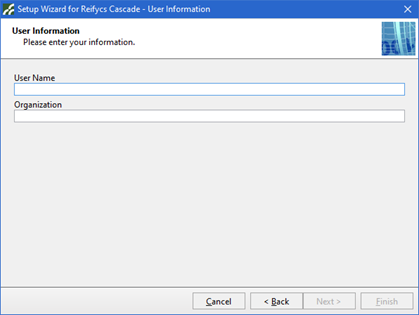
Enter your username and organization name, then click ‘Next’.
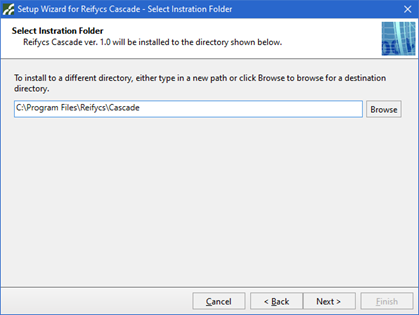
Specify the folder for installation. If no changes are needed, click ‘Next’.
If you wish to create a desktop shortcut for the program, select the option and then click ‘Install’.
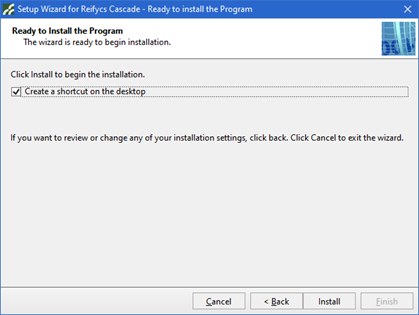
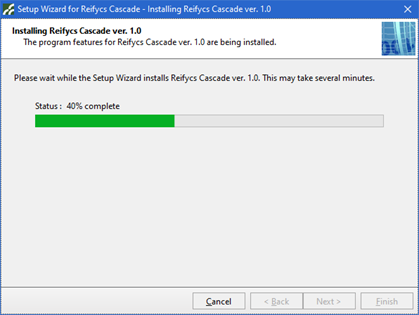
An indicator will display the progress as the installation is carried out.
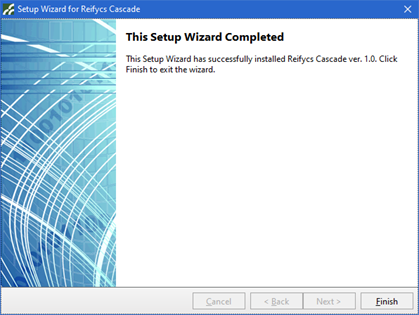
When the installation is complete, the screen below will be displayed. Click ‘Finish’ to end the installation process.
License Registration
Launch Cascade from the desktop icon or start menu. On the first startup, the window shown below will appear. If the license has already been registered, this window can be accessed again by selecting [Help] - [Register Product].
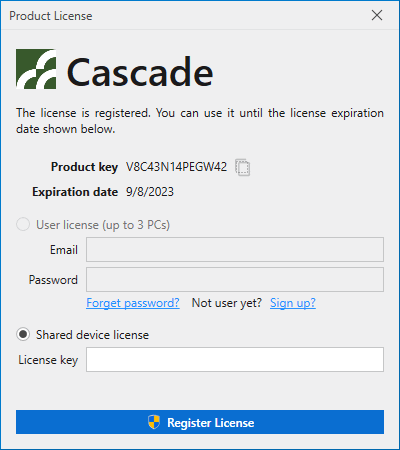
If you do not have a license key yet, please request one by sending an email to support@reifycs.com from the email address associated with your purchase. Include the Product key displayed in this window. After receiving the License key, enter it in the License key field within the window and click [Register License].
Note
The current version supports only Shared device licenses. User licenses are not available.