ISTD Manager
ISTD Manager is a tool that supports the registration of
internal standards (ISTDs).
It is possible to identify a compound as an ISTD by setting an
Analysis Template,
but when the settings, such as which target compound is assigned
to which ISTD, become complicated,
it is difficult to manipulate them by
Analysis Template alone.
You can also assign ISTDs to each target compound on the Dashboard,
but if there are a large number of them,
it will take time to set them up.
ISTD Manager’s editing features allows you to avoid such
cumbersome procedures to make these settings.
At the top of each tab are controls for selecting
the measurement method.
Because the compounds measured are different for each
analytical method, it is necessary to select
the analytical method when setting up the ISTDs.
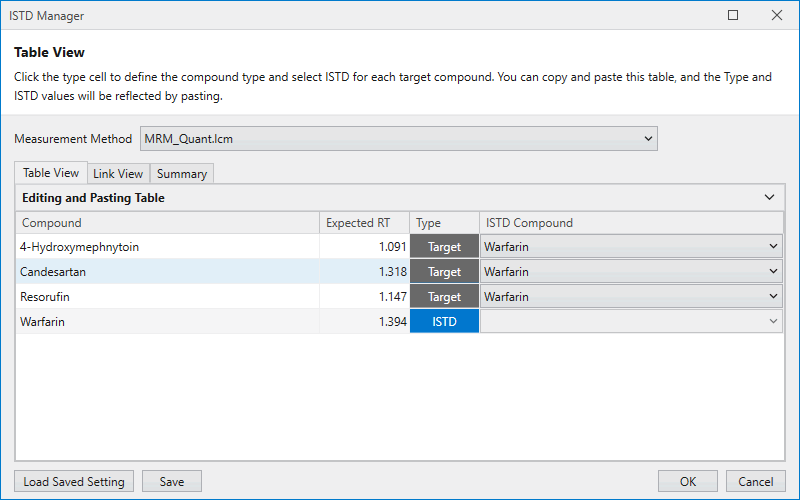
The Table View displays a list of compounds being analyzed.
You can set the type of each compound to either Target or ISTD
by clicking a cell in the Type column.
For compounds whose type is Target,
you can select the ISTD corresponding to the target compound
from the list in the ISTD Compound column.
Table View supports copy and paste,
and it is possible to paste information
that is stored separately in Excel, etc.
You can copy and paste from the right-click menu,
copy with Ctrl+C, and paste with Ctrl+V.
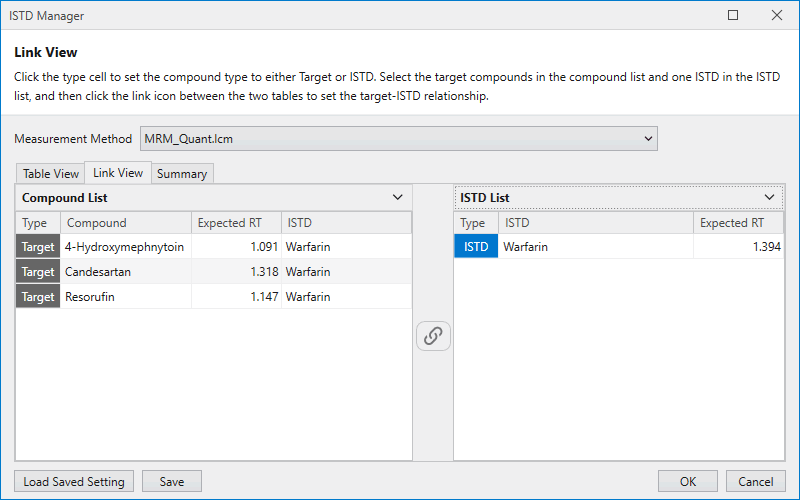
ISTDs can also be set in Link View using a different operation
than in Table View.
Click on the Type column cell in the table
displayed in Compound List or ISTD List,
the compound type changes to Target or ISTD,
and the compound moves to the Compound List on the left
if it is Target,
or to the ISTD List on the right if it is ISTD.
To define the relationship between a target compound and an ISTD,
select the target compound and its corresponding ISTD
in each list and press the Link button
in the middle to define the relationship.
Link View allows you to set the same ISTD at once
by selecting multiple target compounds
using the Ctrl or Shift keys,
making it is more convenient than Table View
when setting many compounds.
A summary can be displayed for each ISTD
so that you can check the relationship
between the target compounds and the ISTDs
set in Table View and Link View.
If necessary, you can apply the settings
by reviewing the settings on this screen
and pressing the OK button.

It is also possible to save the defined relationship
between the target compounds and ISTDs
and use it for further analysis.
To save the settings, press the Save button
at the bottom of the window to save to a file.
If you wish to recall saved settings,
you can do so by pressing the “Load Saved Setting” button.