Result Table
Clicking the Excel icon on the toolbar of the main window or
selecting [File] - [Export Result Table] opens
the Export Result Table window shown below.
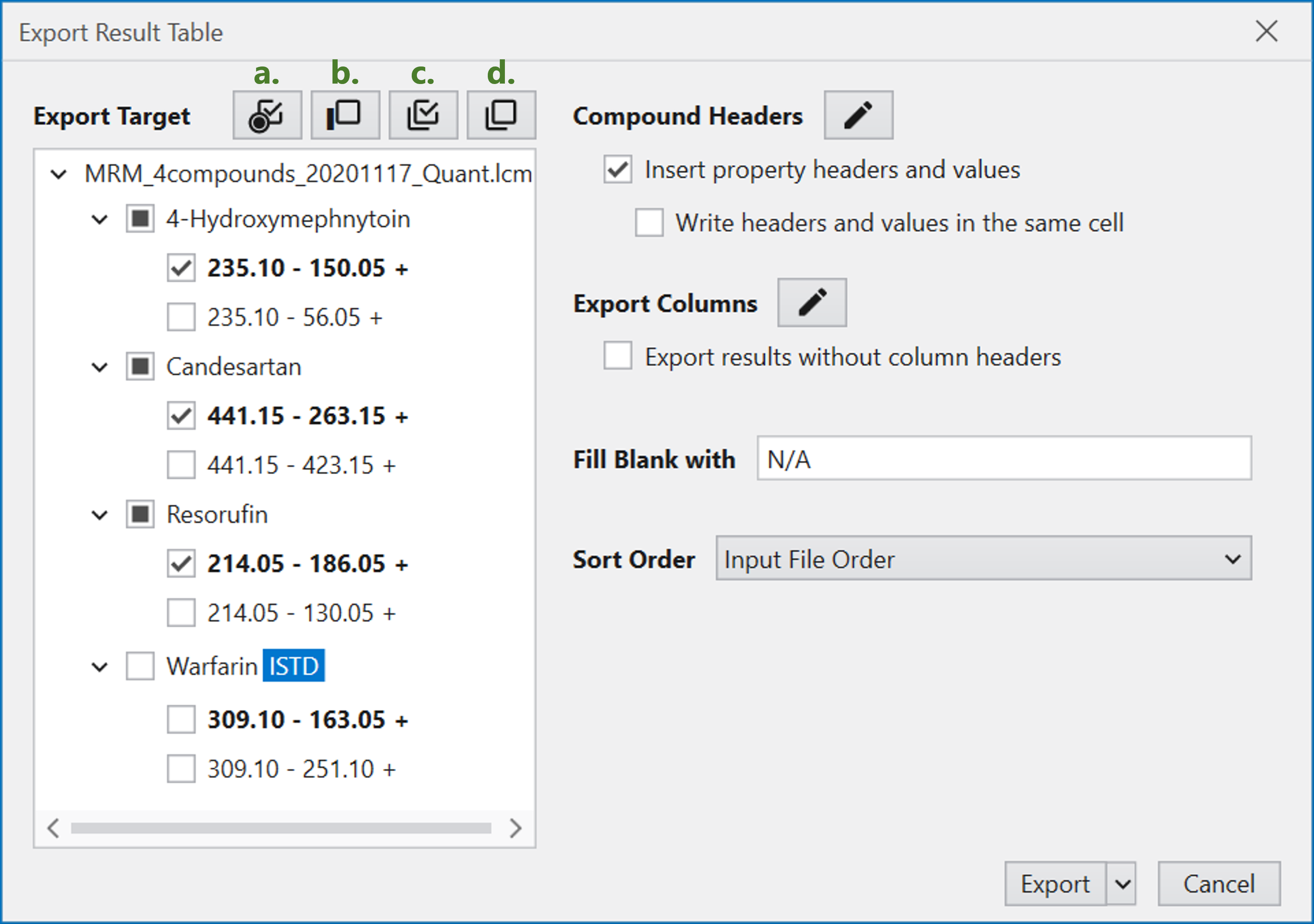
In the left half of this window,
select the compounds and transitions to be exported.
When the window is displayed,
the primary transition of the compound (target compound)
without the internal standards (ISTDs) is selected.
Select the compounds and transitions to be exported
by directly changing the check boxes or by using the buttons
at the top of the window.
The buttons at the top are:
a. Select all selected transitions (bold),
b. Deselect ISTD compounds,
c. Select all transitions,
d. Deselect all transitions.
In the Result Table of the selected compound,
the rows with a check in the Export setting column
will be exported.
In the right half of the window, the items set in
Export Conditions are entered.
See Export Conditions
for details on input values.
Click the arrow to the right of the Export button
to display a pop-up menu.
You can select the export file format from Excel (.xlsx),
comma-separated file format (.csv),
and tab-separated text (.txt)
in the Type field of the pop-up menu.
For the following settings, pay attantion to the number of files.
When exporting to Excel, select “Export to a single worksheet”
if you want to export multiple compounds to a single worksheet.
When exporting mltiple compounds at once,
if a blank line is required for each compound,
you must also check “Insert blankline per compound”.
When exporting multiple compound results to comma-separated
file format (.csv) or tab-separated text (.txt),
each compound is exported as a separate file unless
“Export to a single file” is selected.
Therefore, please be aware that
there will be multiple export files.