Export Conditions
Export Conditions define the default settings used by the Result Table and Data Matrix File Export.
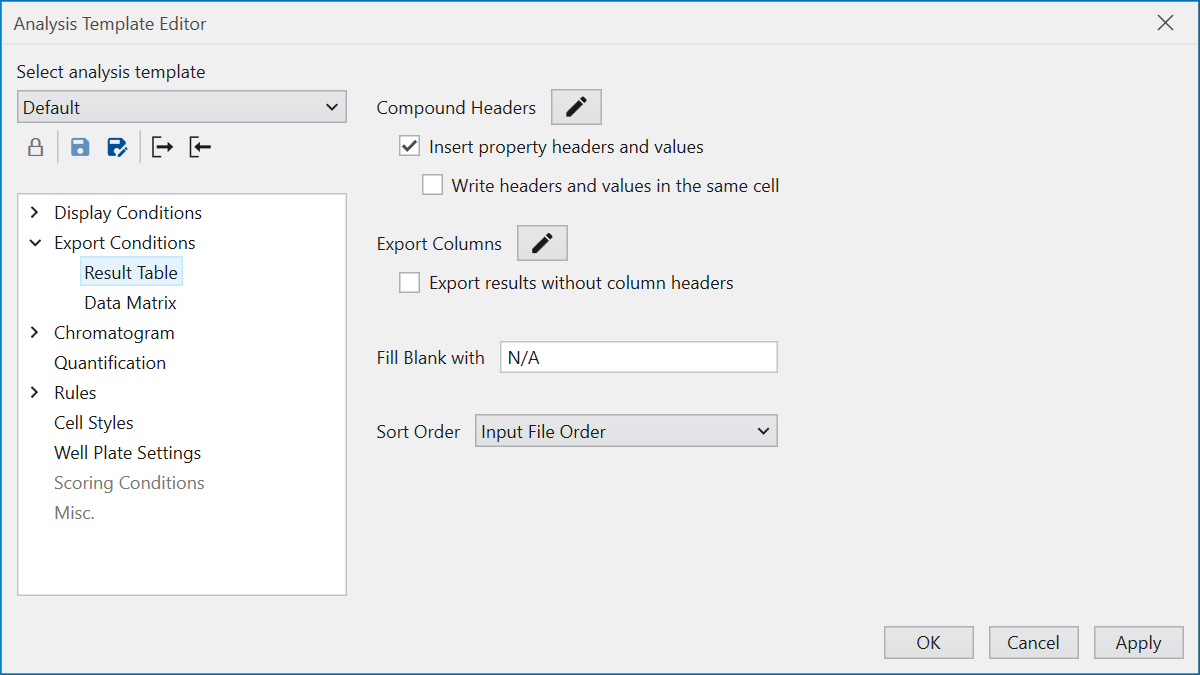
In the Result Table, configure settings for exporting results
for each compound.
Use “Compound Headers” when exporting information
such as the type of calibration curve
that is not displayed in the Result Table.
The pencil icon in the “Compound Headers” allows
you to select the content you want to export as a compound header.
It is important to note that
the information designated as ‘Compound Headers’ will not be exported
unless the ‘Insert property headers and values’ option is selected.
If you prefer the compound header’s title and value
to be combined within a single cell in Excel,
ensure that the ‘Write headers and values in the same cell’
option is selected.
For Export Columns, select the columns you want to export.
To select columns for export,
click the pencil icon and follow the same procedure
as outlined in the
Display Conditions section.
If Column Header is not required during export,
check “Export results without column headers”.
The string entered in the “Fill Blank with” field will be used instead of cells with no value (Blank).
This string is independently from “Display Style” in Preference .
Therefore, you can select a string suitable for file export.
The order of rows in Result Table can be set using Sort Order.
If you select Input File Order,
the rows will be exported in the order of the files input to Cascade.
If you want to export the measurement date
in ascending or descending order,
select Measurement Date in Ascending and Measurement Date in Descending,
respectively.
In Data Matrix,
set up the export configuration to span across compounds
for values like RT, Height, Area, Ratio, and Calculated Concentration.
Select the items you want to export from Export Values
on the screen below,
and select the items you want to export
as sample attributes from Row Header.
In cases where no peak is detected, the related cells in the Result Table will be filled with the string set in “Display Style” in Preference , such as ‘N/A’.
If you wish to replace the string with another one for compatibility with statistical analysis software using the export results, please use the “Fill Blank with” and “Fill Disabled Row with” options.
Sort Order can be used in the same way as Result Table.
