PDF
Clicking the PDF icon on the toolbar of the main window or
selecting [File] - [Export PDF] opens the Export PDF window
shown below.
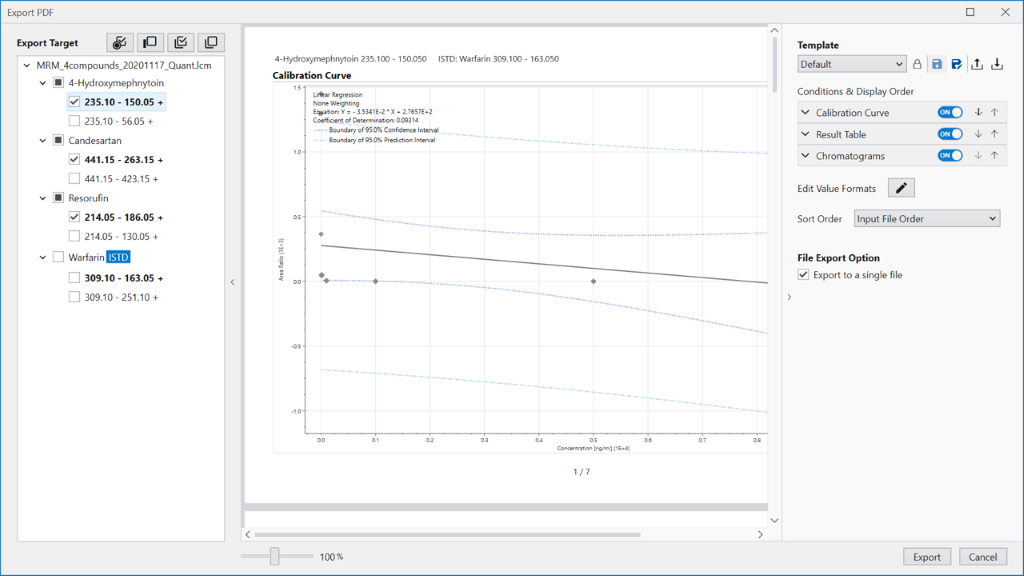
This window is divided into three sections.
In the left pane,
select the compounds and transitions you wish to export.
When the window is displayed,
the primary transition of the compound (target compound)
without the internal standard (ISTD) is selected.
Select the compounds and transitions to be exported
by directly changing the check boxes or
by using the buttons at the top of the window.
The operations of the buttons are the same as in the
Result Table.
The middle pane displays a preview of the compounds and transitions
selected in the left pane when exported to PDF.
The controls in the right pane can be used to define
the display order and contents.
The preview pane can be zoomed in or out
using the slider at the bottom.
The right pane is a Dashboard for defining the export format.
Details of the export format can be set
using the “Conditions & Display Order” controls.
“Conditions & Display Order” controls the display details and
order of the “Calibration Curve”, “Result Table”, and “Chromatogram”.
You can define the order of export
by pressing the up and down arrows in the header of each item.
Details of the settings for each item are given below.
Edit Value Formats allows you to set the number of digits to be displayed for each value in PDF output. The Edit button with a pen symbol on the right side of the item allows you to set the details. Value Formats can be set in the same way as Display Conditions and can be copied from the Analysis Template currently being used. Sort Order allows you to set the order of rows in the Result Table and panels in the Chromatogram, and if Input File Order is selected, the output will be ordered by the file order entered in Cascade. To output in ascending or descending order of measurement date, select Measurement Date in Ascending or Measurement Date in Descending, respectively. In the File Export Option, check the Export to a single file checkbox to output as a single PDF file. If this is not checked, a file will be output for each transition.
The formats set in the above controls can be saved as templates. To save the set format, press the Save As button indicated by a floppy icon with a pen. This button will bring up a dialog box where you can add a template by entering the name you wish to save. With the added template selected, make the setting changes described above, and press the Save button indicated by the floppy icon to overwrite the template. The Default template, however, is marked with a lock mark and cannot be overwritten. To share this template with other Cascade users, save it as a file using the Export/Import buttons. By sharing the saved file with other Cascade users, they will be able to use the same template.