Operation Buttons
The Chromatogram window has eight buttons to change the editing mode and display of the chromatogram.
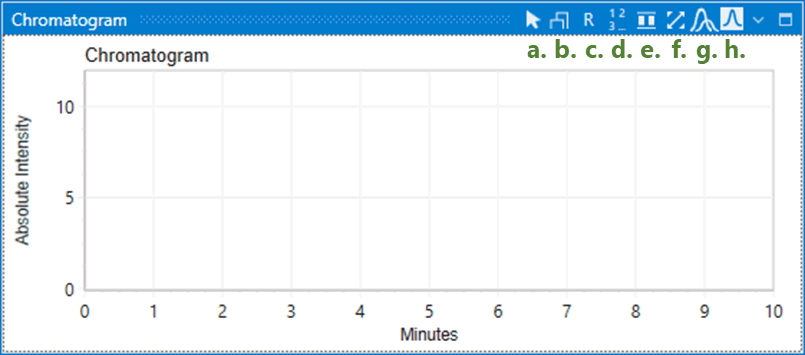
a. Control Mode Button
This button is used to switch the mouse pointer. There is a normal Edit mode and a Split mode dedicated to peak splitting. For more information on Split mode, see Splitting a Peak.
b. Display Transition Button
You can switch between overlaying all transitions of the same compound or displaying only the selected transition.
c. Label Button
You can switch the label displayed above the peak. Each left-click on the button cycles through R (RT), H (maximum intensity), A (area value), and - (hidden).
d. Intensity Mode Button
You can switch between displaying absolute or relative intensities.
e. Align Vertical Axes Button
Works if ISTD is set. To compare the target and ISTD chromatograms displayed in parallel, you can choose to display them with their intensity axes aligned or to display them individually.
f. Reset Display Region Button
You can reset the zoomed in chromatogram.
g. Display ISTD Button
Works if ISTD is set. You can switch between displaying the ISTD chromatogram next to the target chromatogram or displaying only the target chromatogram.
h. Single/Multiple Sample View Button
You can switch between displaying a list of chromatograms for all samples or displaying only the chromatogram for the selected sample in Result Table. Since the chromatogram selection status and peak editing contents are immediately reflected in the Result Table, Displaying all chromatograms can be used for purposes such as editing peaks efficiently while checking the values in the Result Table.