Result Table
This chapter explains the display contents of the Result Table and how to change its settings.
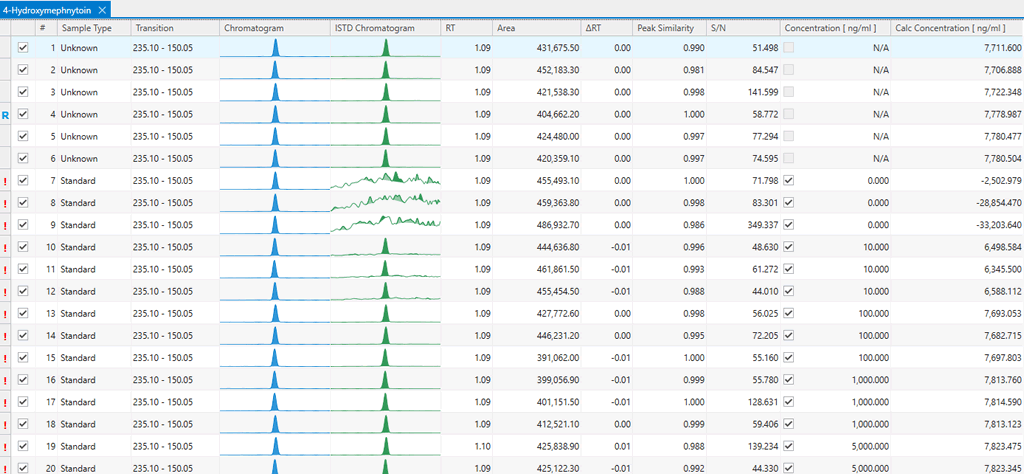
The Result Table displays the analysis results obtained for each compound as a list. Please see the contents that can be displayed from “Column List” below. There is a special column that is not listed and is always located at the left end, and only checkboxes are displayed in this column. These checkboxes enable users to select samples for exporting results via the File Export feature. For setting display columns, see Display Conditions .
Some columns function by setting a reference sample from the analysis results list. ΔRT [Reference] or Similarity are columns that display the comparison results between each sample and the reference sample. The reference sample can be set from the context menu by right-clicking on the row you want to set as reference.
Regardless of the display column settings, there is a row header region at the beginning of each row. If an event that requires attention occurs in any cell in the row, ‘!’ icon will be displayed in this region. Examples include the events listed below. Please check the tooltip displayed by hovering over the mouse to find out what is occurring.
Selected peak does not exist in the row specified for Standard or QC sample.
The number of points required to draw a calibration curve may be insufficient, due to the number of standard samples and duplication of concentrations, etc.
The peak top of the selected peak is outside the range defined by the “Limited Range” function. (see Chromatogram Settings )
The “Row Header Warning” function is used when highlighting cells. (see Cell Styles)
Additionally, ‘R’ icon is displayed in the row header area for a row that are set as reference sample. This icon is normally displayed in blue, but if the above events are also occurring at the same time, the icon color changed to red. Please check the details from the tooltip as well as ‘!’ icon.
You can copy the contents of this the Result Table by using the Ctrl+C shortcut. This function is useful when pasting the contents into Excel, etc. Normally, the contents of the selected rows are copied, but you can use column-wise copy by checking “Use the column-wise copy mode” in Result Table Operations . Both row-wise and column-wise copy modes support multiple selection by Ctrl or Shift key.