Peak Operations
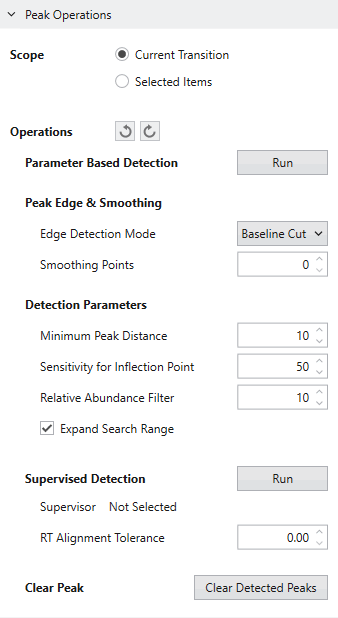
Peak Operations applies Peak Detection and Supervised Detection
to the results displayed in the Result Table.
In the Scope field, select the scope to apply Peak Detection, Supervised Detection,
or to clear (delete) peaks.
Selecting Current Transition applies the processing to all rows in the transition selected as the primary transition in the Result Table.
If you select Selected Items, the processing will be applied only to the selected rows in the Result Table.
On using Selected Items, you need to select the appropriate rows to be processed on the Result Table using the Ctrl or Shift key.
If you want to perform peak detection based on parameters, edit Peak Detection Parameters
and press the Run button to execute the process.
The display of peak detection parameters changes depending on the selected row of the Result Table.
Therefore, you can check the parameters when performing peak detection without checking the Properties window.
When performing Supervised Detection, it is necessary to specify a Supervisor.
The peak of the selected row in the Result Table is used as the Supervisor.
If multiple rows are selected, the first row selected will be treated as the Supervisor.
You can confirm it by the color of the selected row in the Result Table, or by the sample name displayed in the Dashboard.
Set “RT Alignment Tolerance” from the controls in the Dashboard and press the Run button to execute the process.
At this time, the “Apply peak shape estimation” settings will follow the Chromatogram
settings in the selected Analysis Template.
Please refer to Supervised Detection for each parameter.
To delete peaks, press the “Clear Peak” button.
Note that the states before and after each process executed with Peak Operations are managed as snapshot histories.
With the two buttons on the right side of Operations, you can return or advance the results to the state before and after the executed process (snapshot).
It is not necessary to take backups on performing the process.
Snapshots also manage the manual editing history of chromatograms.
When you edit a chromatogram manually,
you can follow the history from the Chromatogram window,
but when you run Peak Operations,
the manual editing histories are saved as a snapshot,
and the histories of the Chromatogram window will be deleted.
Thus, by going back one snapshot,
the editing histories for each chromatogram are restored
and can be accessed again from the Chromatogram window.
This snapshot and the editing history of each chromatogram
will be deleted when the project is closed or
by running Reanalysis.